Getting started
MuhOS runs on Fedora 44 or 45 Workstation (x86_64). It's installed next to GNOME, not instead of it: you choose which one to use when you log in.
curl -fsSL https://alex-muhscience.github.io/MuhOS/install.sh | bashThe installer downloads the newest release for your Fedora version from GitHub, checks every package against the release's checksums, enables the Hyprland COPR and installs with dnf, asking first. See Download for the details and other ways to install.
- After installing, log out.
- On the login screen, click your name, then the gear button at the bottom right, and choose MuhOS (Hyprland).
- Sign in. The first start shows a short welcome with the most useful shortcuts. Your login screen remembers the choice.
To go back to GNOME, log out and pick GNOME the same way. Nothing in your GNOME session changes.
Menu bar
The menu bar runs along the top, transparent over your wallpaper. Its text turns dark over light wallpapers and light over dark ones.
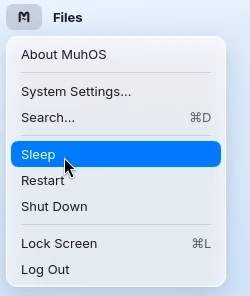
- MuhOS logo (top left): About MuhOS, System Settings, Search, Sleep, Restart, Shut Down, Lock Screen and Log Out. Sleep, Restart and Shut Down act straight away.
- App name in bold: the app you're using. Click it for Enter Full Screen and Quit.
- Tray: icons that background apps put there.
- Magnifier: Search.
- Network, volume and battery icons: the control centre. Scroll on them to change the volume.
- Date and time: the notification centre. A dot means there are unread notifications.
Prefer the earlier GNOME-style layout, with workspace dots and a clock in the middle? See Configuration files.
Dock
The dock floats at the bottom of the screen on frosted glass. Icons grow under the pointer, and their neighbours grow a little too.
- Click an icon to open the app, or to bring it forward if it's already open. An app with several windows shows live previews of them above its icon; click a preview to raise and focus that window. Open apps have a dot under them.
- Right-click an icon for its menu, including Pin to dock and Unpin from dock.
- The first icon, Apps, opens the app grid.
- Size, magnification, auto-hide and which apps show are in Settings → Dock.
App grid
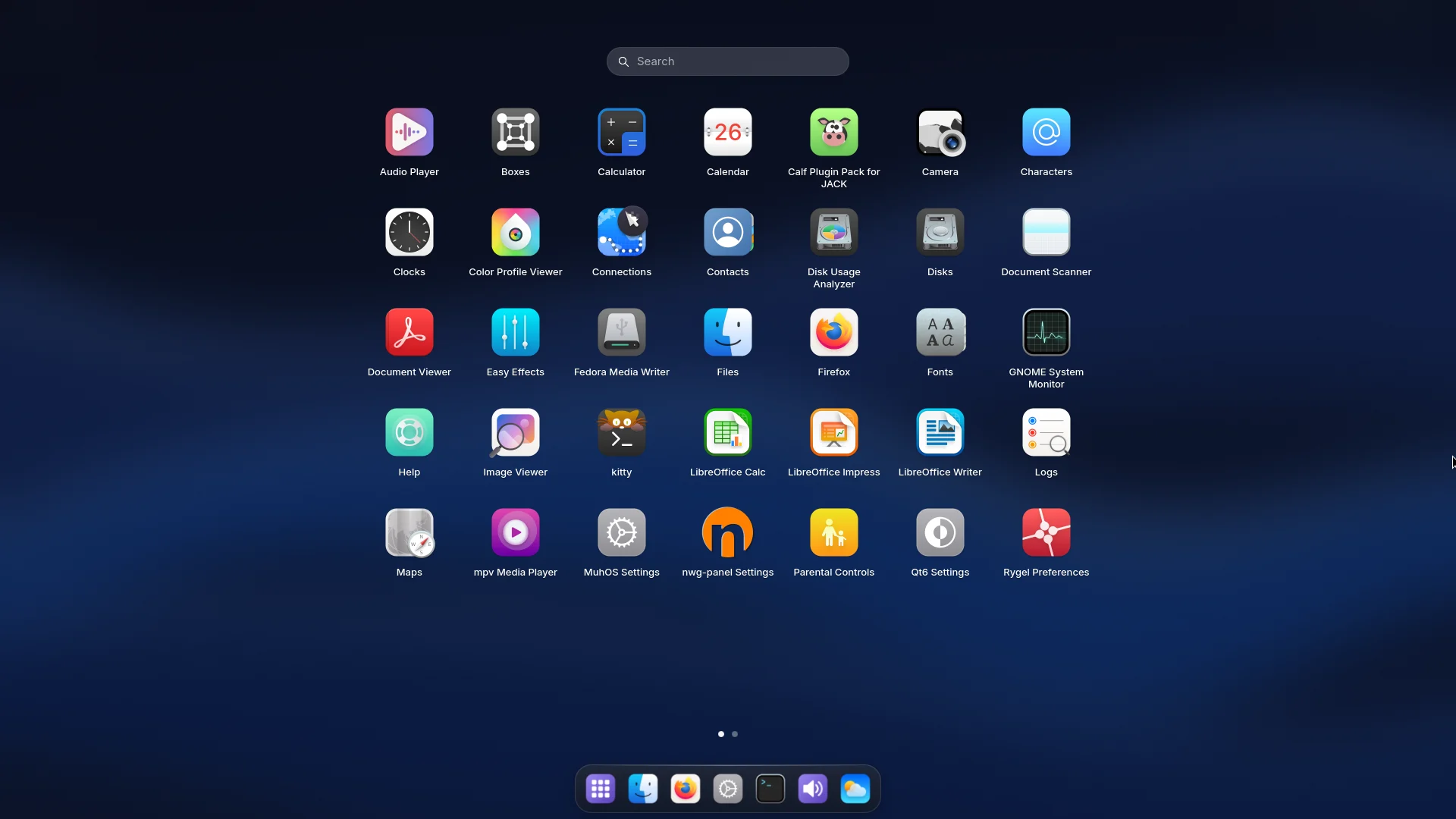
Like the Apps view on a Mac, the app grid shows every installed app as a large icon, sorted by name, over your blurred desktop, in pages as in Launchpad: swipe or scroll sideways, click the dots under the icons, or press ←/→ to turn them. Press and hold an icon to move it, as in Launchpad; drag it to a page's edge to move it to another page.
- Start typing to filter: names, descriptions and keywords all count.
- Click an app, or use the arrow keys and Enter, to open it.
- Escape clears the search, then closes the grid. Clicking an empty area also closes it (when the grid has more apps than fit, the area around it).
- The dock stays visible above the grid, so you can still open apps from it.
Search
Press Super+D or click the magnifier for a Spotlight-style search. Before you type, it suggests the apps you use most. As you type, it shows:
- Apps, ranked by how well they match and how often you use them.
- Actions: settings, wallpapers, control centre, clipboard, screenshot, night light, dark style, do not disturb and lock. Sleep, restart, power off and log out appear only after three letters, so a stray Enter can't restart your computer.
- Files from your home folders.
- Calculations: type
18*7+2and press Enter to copy the answer.
Windows
Windows float and overlap as on a Mac, and open in the middle of the screen at the size the app asks for.
- Window buttons are on the left: close (red) and zoom (green), which makes the window fill the space between the menu bar and the dock, or restores its size. As on a Mac, a zoomed window is still an ordinary window: other windows can go in front of it. Apps' title bars have no minimise button because Hyprland ignores apps' own minimise requests.
- Minimise: Super+M or Minimize in the app menu. Click the app in the dock to bring the window back.
- Focus and switch: a click focuses a window and brings it forward (pointing at it does not). Super+Tab or Alt+Tab goes to the next window, add Shift for the previous one. A new window that would open exactly over another is moved down and to the right.
- Mission Control: Super+G or a three-finger swipe up shows every window on the workspace side by side; click one to bring it forward.
- Move a window by its title bar, or hold Super and drag anywhere in it. Super and the right mouse button resizes.
- Tile: Super+T fits the window into a side-by-side layout with other tiled windows; press it again to float it.
- Full screen: the app menu (its name in the menu bar) or Super+Alt+F to maximise.
- Close: the red button, Quit in the app menu, or Super+Q.
- Workspaces: Super+1…0 switches, add Shift to move the window there; three fingers sideways on a touchpad.
Control centre
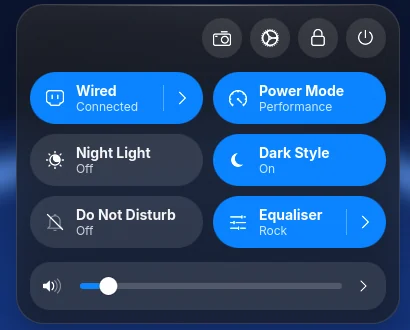
Click the network, volume and battery icons at the top right.
- Toggles: Wi-Fi (or Wired), Bluetooth, power mode, night light, dark style, do not disturb and the equaliser. Those with an arrow open more settings: networks, Bluetooth devices, the equaliser.
- Sliders: volume, and brightness on screens that support it. The arrow beside volume opens the Sound window: output and input devices and the volume of each app.
- Buttons at the top: screenshot, Settings, lock, and a power menu (suspend, restart, power off, log out).
Escape or a click outside closes it.
Notifications
- Banners slide in at the top right, with the app's icon, any picture sent with them, and action buttons. They wait while the pointer is over them; swipe one to the right to dismiss it. Critical alerts stay until you dismiss them.
- Notification centre: click the date and time. It lists your notifications (with Clear all), has a Do Not Disturb switch, and shows a month calendar with a link to the full calendar and weather.
- Do Not Disturb holds back every banner except critical alerts; everything still reaches the notification centre.
Sound and equaliser
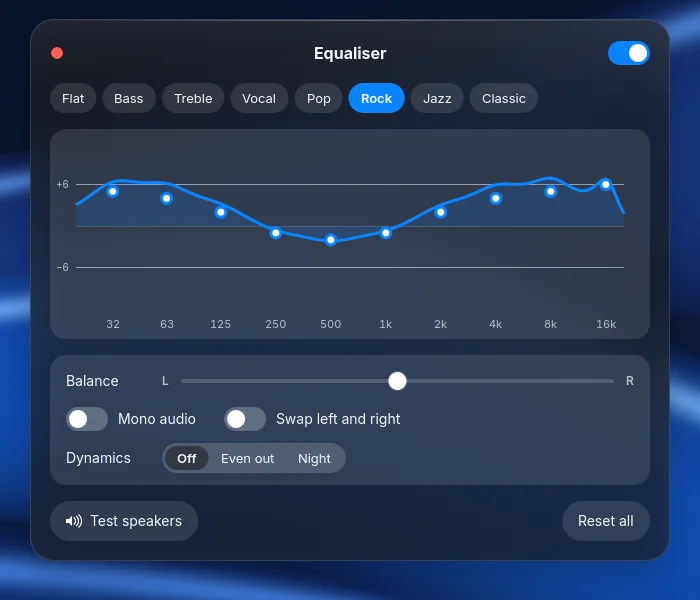
Open the equaliser with the arrow on the control centre's Equaliser toggle; the toggle itself turns it on and off.
- Presets: Flat, Bass, Treble, Vocal, Pop, Rock, Jazz and Classic.
- Bands: ten bands from 32 Hz to 16 kHz, ±12 dB. Drag a dot up or down, scroll on it, or double-click it to reset it. The curve shows what you'll actually hear, including how neighbouring bands add up.
- Balance, Mono audio and Swap left and right.
- Dynamics: Even out gently narrows the gap between quiet and loud parts; Night does so strongly, for listening quietly. This needs the
ladspa-swh-pluginspackage, which MuhOS installs by default. - Test speakers plays a tone on the left, then the right, then both.
The equaliser runs on PipeWire itself and follows whichever output you use (speakers, headphones, Bluetooth). It applies to everything played to your default output, only in the MuhOS session, and it's switched off completely while it's flat. Your settings are kept across restarts. The music window (Super+Shift+M) has the same equaliser in its EQ tab.
Appearance
Themes and accent colours
Settings → Theme has preset themes (new users start with macOS; macOS Dark is next to it) or Matugen, which takes its colours from your wallpaper. Accent colour picks one of ten colours for highlights, toggles and selections, on top of any theme.
Light and dark
The Dark Style toggle in the control centre switches between light and dark. In dark mode, apps use GNOME's own dark style rather than WhiteSur, whose dark version doesn't display GNOME 50 apps correctly yet. If you switch while apps are using WhiteSur, apps change at your next login.
Wallpapers
Press Super+W. MuhOS comes with light and dark wallpapers; put your own pictures (or videos) in ~/Pictures/Wallpapers.
Apps, icons and fonts
In the MuhOS session, apps use the WhiteSur theme and icons and the Inter font. These live in MuhOS's own settings profile, so your GNOME session keeps its own theme. Settings → Theme → Font changes the shell's font.
Lock, sleep and power
- Lock: Super+L, the logo menu or the control centre. The lock screen shows the time, what's playing and notification titles only. Your normal password unlocks it.
- When idle, by default: the screen dims after 2½ minutes, locks after 5, turns off after 7½, and the computer sleeps after 10. Media playing keeps it awake. Change this in Settings → Idle.
- Sleep, restart, shut down, log out: the logo menu or the control centre's power menu.
Keyboard shortcuts
| Shortcut | Action |
|---|---|
| Super+D | Search: apps, files, actions, calculator |
| Super+Enter | Terminal |
| Super+E | Files |
| Super+F | Firefox |
| Super+Q | Close the window |
| Super+M | Minimise the window (the dock brings it back) |
| Super+Tab or Alt+Tab | Next window (Shift: previous) |
| Super+G | Mission Control |
| Super+T | Tile the window, or float it again |
| Super+Alt+F | Maximise the window |
| Super+drag | Move (left button) or resize (right button) a window |
| Super+←↑↓→ | Focus the window in that direction |
| Super+1…0 | Go to workspace 1–10 (Shift: move the window there) |
| Super+H | Settings |
| Super+L | Lock the screen |
| Super+C | Clipboard history |
| Super+W | Wallpapers |
| Super+Shift+M | Music |
| Super+V | Sound |
| Super+N | Network |
| Super+S | Calendar |
| Super+Space | Play or pause |
| Screenshot of an area (Shift: open it in the editor) | |
| Super+Print | Screenshot of the whole screen |
| Super+R | Reload the shell |
| Media, volume and brightness keys | Work as labelled, also on the lock screen |
The Settings app
Open it with Super+H, System Settings in the logo menu, or "MuhOS Settings" in the dock. Its sections:
| Section | What's there |
|---|---|
| General | Your picture, language, interface sounds, location for weather, screenshot behaviour |
| Display | Screens, scaling and the blue light filter; desktop widgets |
| Theme | Wallpaper folder, accent colour, font, corner radius, transparency, colour themes |
| Bar | Position and behaviour of the bar, and which modules it shows |
| Launcher | The search window's size and ranking |
| Dock | Size, magnification, auto-hide, pinned and running apps |
| On-Screen Display | The volume, brightness and caps lock indicator |
| Notifications | Position, sounds, Do Not Disturb |
| Wellbeing | Focus-time tracking |
| Idle | Dim, lock, screen off and sleep timers |
| About | Version, licence and credits |
Configuration files
Most things are in the Settings app. Under the hood:
| File | Holds |
|---|---|
~/.config/serpantinum/settings.json | Shell settings (written by the Settings app) |
~/.config/muhos/hypr/user.lua | Your own Hyprland settings and shortcuts (create it) |
~/.config/dconf/muhos | App settings (theme, icons, font) for the MuhOS session only |
~/.local/state/serpantinum/ | Generated colours, the equaliser and other state |
Settings worth knowing
In settings.json | Effect |
|---|---|
"bar": { "layout": "hybrid" } | The GNOME-style bar: workspace dots on the left and a clock island in the middle that becomes a player |
"bar": { "design": "classic" } | Serpantinum's original design everywhere |
"theme": { "accent": "#FF9500" } | Any accent colour; "" keeps the theme's own |
"muhos": { "solidPanels": true } | Solid panels instead of glass, like "Reduce transparency" on a Mac |
"general": { "ipGeolocation": true } | Find your location from your IP address for the weather (off by default) |
Your own Hyprland settings
Put them in ~/.config/muhos/hypr/user.lua; it's loaded after MuhOS's defaults, so yours win, and updates never overwrite it.
-- ~/.config/muhos/hypr/user.lua
hl.bind("SUPER + X", hl.dsp.exec_cmd("ptyxis"))     -- a second terminal
hl.monitor({ output = "DP-1", mode = "2560x1440@144", position = "0x0", scale = 1.0 })
Check it with Hyprland --verify-config -c ~/.config/muhos/hypr/hyprland.lua. The README covers more.
Updating and removing
Update with muhos-update in a terminal: it shows what's new and the download size, downloads with progress bars, verifies the packages and asks before installing them. Settings' Update button runs it for you; running the install command again also works. Your settings are kept.
Choose how MuhOS updates. The installer asks once; change it any time:
muhos-update --mode manual: the default. Nothing in the background; update when you want.muhos-update --mode notify: checks once a day; a notification offers to update.muhos-update --mode auto: installs new releases once a day in the background, then tells you to log out and back in.
muhos-update --check only says whether a newer release exists; muhos-update --mode shows the current choice.
Remove MuhOS with:
sudo dnf remove muhos whitesur-gtk-theme whitesur-icon-theme
rm -r ~/.config/muhos ~/.config/dconf/muhos                # optional: MuhOS settings
rm -r ~/.config/serpantinum ~/.local/state/serpantinum     # optional: shell settings
MuhOS never changes your GNOME setup, so nothing else needs restoring.
Privacy
- No telemetry. Updates are checked against MuhOS's GitHub releases only when you open Settings or run
muhos-update, or once a day if you chose the notify or auto update mode. Nothing about you is sent. - Your location is not looked up automatically. The weather stays off until you set a location in Settings → General → Location; forecasts then come from Open-Meteo. The Detect button does a one-time lookup through ipapi.co.
- The lock screen shows notification titles, never their contents.
Troubleshooting
"MuhOS (Hyprland)" isn't on the login screen
Check that Hyprland installed; it comes from the COPR that the installer enables: rpm -q hyprland muhos.
Apps look like GNOME in dark mode
That's expected for now: in dark mode, apps use GNOME's own dark style. See Appearance.
The equaliser does nothing
Check that its toggle in the control centre is on and that it isn't set to Flat (a flat equaliser switches itself off). Then check its engine: systemctl --user status serpantinum-eq. Dynamics needs sudo dnf install ladspa-swh-plugins.
Firefox doesn't look like the other apps
Firefox draws its own interface, so GTK themes don't style it.
The dock has tiles or doesn't magnify
MuhOS's dock settings are defaults for new users. If you changed dock settings before, turn on floating, magnification and cascade in Settings → Dock.
Something looks wrong or the shell crashed
These commands show what happened; include their output when you report a bug:
journalctl --user -u muhos-shell -b             # shell logs
systemctl --user status muhos-session.target    # is the session running?
Hyprland --verify-config -c ~/.config/muhos/hypr/hyprland.lua
muhos reload                                     # restart the shell's interface
Does MuhOS change my GNOME session?
No. MuhOS keeps its app settings in a separate profile that's used only in the MuhOS session, and clears it when you log out; its equaliser stops at logout too.
Getting help
- Questions and ideas: GitHub Discussions.
- Bugs: open an issue with the shell log.
- How it runs on your hardware, even when everything works: the hardware report form.